Create from a written prompt
Text to 3D Model: Turn a written object brief into a rotatable 3D mesh
Describe an object’s overall silhouette, key components and surface finish. Pick a text-capable model, inspect the generated mesh from every angle and export GLB, OBJ or STL.
Create your model
3D preview
Sample result · Rodin 2.5 Fast
A real Rodin 2.5 Fast example generated on AI Image to 3D. Inspect the shape, then create your own model from a supported input.
Use cases
Text to 3D model ideas across creative projects
Building a text to 3D model gives early concepts tangible volume fast. Explore game props, decorative forms or product drafts before committing hours to manual modeling.
- Rodin 2.5 Fast
Generate a text to 3D model of a lantern, relic or fantasy prop whenever you have a written design brief without reference art. Orbit the first mesh to verify proportions, then refine topology and materials before importing into your game scene.
- Hunyuan 3D 3.1 Pro
Use a text to 3D model to test sculptural vessels, desk ornaments or display pieces. Exporting STL lets you open the form in a slicer or mesh editor to inspect wall thickness, scale, connected parts and supports before printing.
- Hunyuan 3D 3.1 Rapid
A text to 3D model helps teams review physical concepts earlier: describe the core body, visible hardware and material finish, then rotate the resulting volume. Use it as a visual concept blockout prior to engineered CAD modeling.
- Tripo H3.1
Convert a concise object prompt into a quick set-dressing proxy for layout and pre-visualization. Bring the downloaded mesh into your 3D editor to check framing and scale before investing in hero-level detailing and shaders.
Examples
Text to 3D model prompt examples to inspect
Review the exact prompt paired with each text to 3D model, note the engine used and orbit the mesh. Selecting an example populates the input field without submitting a run.
A cute retro toy robot with a round teal head, red ear pieces, a yellow chest dial and springy grey arms, standing, full body
Models
Compare AI text to 3D models for your prompt
Review the engines that accept text prompts along with their supported mesh-detail tiers. Pairing a focused object description with the right model shapes both silhouette and surface finish.
| Model | Image | Text | Multi-Image | Mesh detail |
|---|---|---|---|---|
| Rodin 2.5 Fast | Yes | Yes | 2–5 views | Low · Standard · High |
| Hunyuan 3D 3.1 Rapid | Yes | Yes | — | Standard only |
| Tripo H3.1 | Yes | Yes | 4 set views | Low · Standard · High |
| Hunyuan 3D 3.1 Pro | Yes | Yes | — | Low · Standard · High |
| Rodin 2.5 | Yes | Yes | 2–5 views | Low · Standard · High |
| Meshy 7.1 | Yes | Yes | 2–4 views | Low · Standard · High |
Supported inputs and detail tiers reflect each model’s live workspace configuration. Output quality depends on the clarity of your uploaded image.
Prompt to 3D model essentials
- Input
- A concise object description within the active model’s character limit
- Choice
- 6 models currently support text prompts
- Output
- Downloadable 3D mesh in GLB, OBJ or STL format
- Preview
- Interactive textured, solid and wireframe browser inspection
- Model settings
- Texture and mesh-detail toggles adapt to each text-capable model
- Compatible input
- TRELLIS runs on image and multi-image inputs; select a text-capable model for prompts
Features
Craft a text to 3D model from clear object descriptions
AI text to 3D performs best when your prompt focuses on the physical subject itself. Specify proportions, parts and surface materials, then inspect the mesh before choosing an export format.
Write a concrete, object-first description
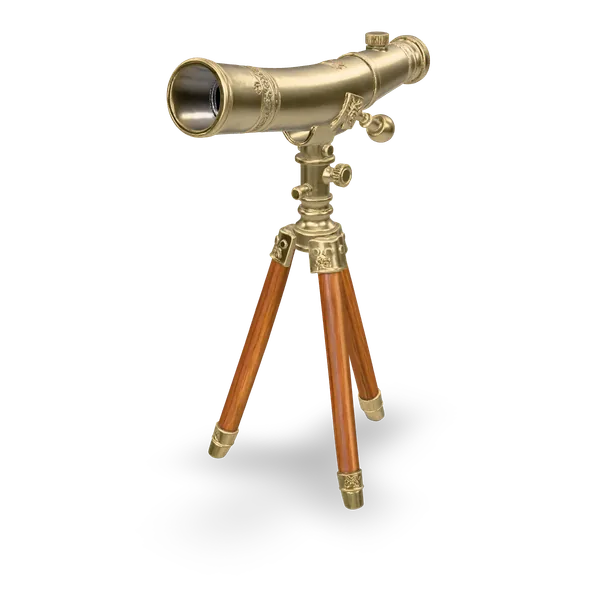
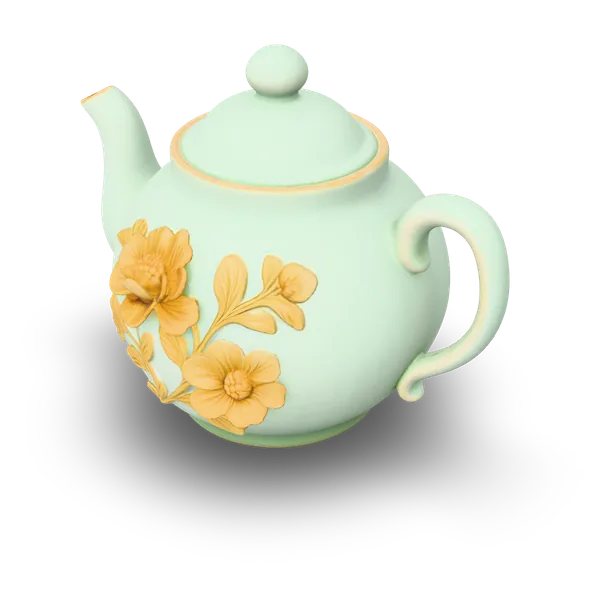
Every strong text to 3D model starts with a clear physical subject. State the object type, silhouette, defining parts and material finish—such as a glazed ceramic teapot with a curved handle—rather than camera angles or full room scenes. The active model’s character limit displays directly beside the prompt box.
A vintage brass desk telescope on a wooden tripod with engraved details
Check inferred angles beyond your wording
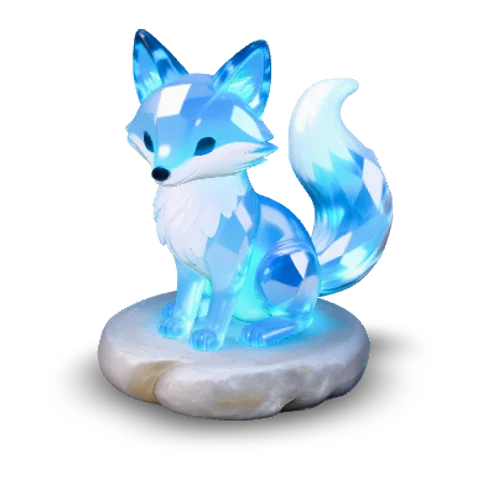
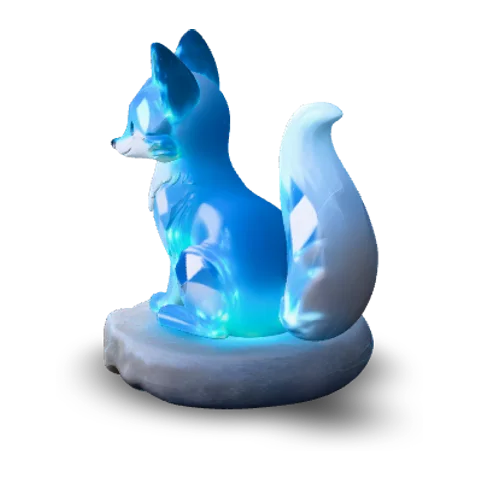
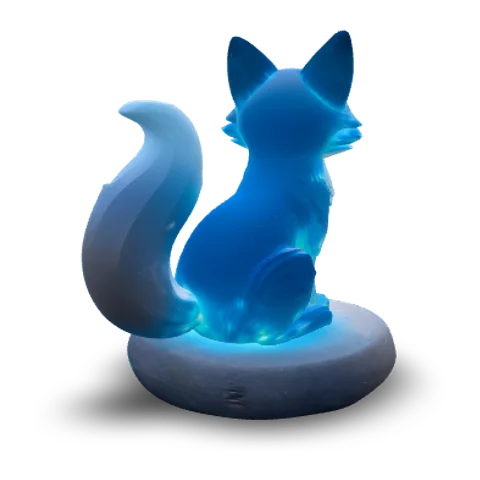
Generating a 3D model from text creates full 360-degree surfaces, including sides your prompt did not explicitly spell out. Compare front, side and rear angles of the mesh to verify proportions and spot details worth clarifying if you iterate on the prompt.
Evaluate mesh geometry separately from texture
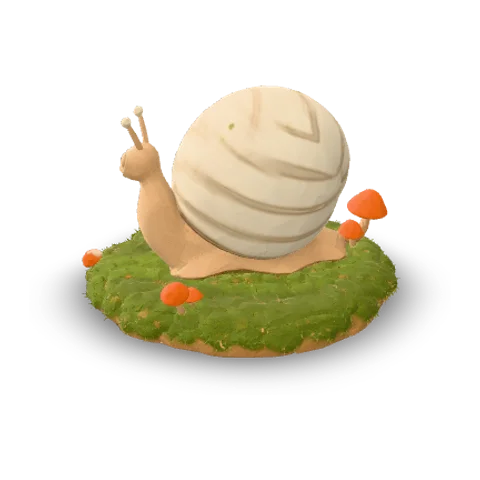
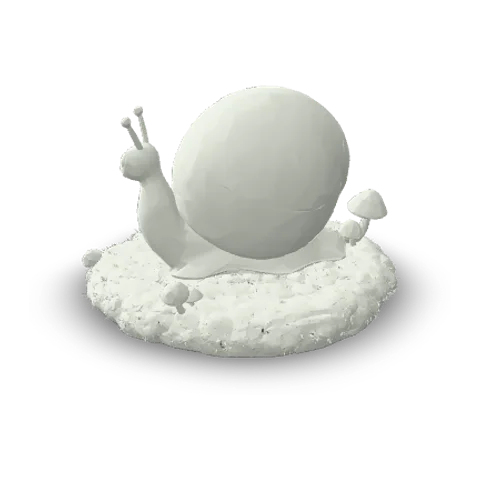
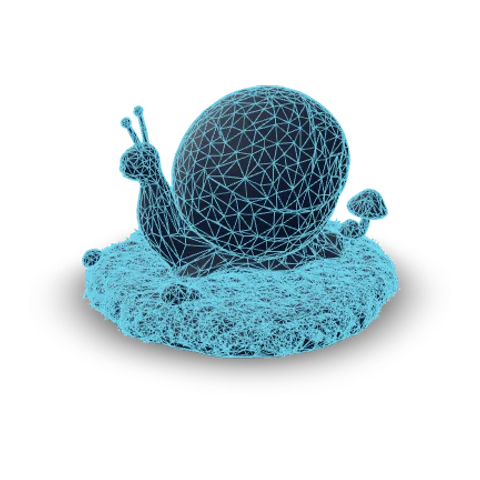
Inspect your prompt to 3D model output from multiple angles instead of judging only the default view. Solid and wireframe modes reveal the underlying geometry cleanly, while textured mode shows material interpretation. Texture and detail options remain independent controls per model.
Export a usable mesh for downstream tools
Save your finished text to 3D model in the format your next tool expects: GLB for web and game engines, OBJ with companion material files for DCC editors, or STL for slicer geometry inspection. Review scale, topology and print settings in your destination software.
- glbWeb and games
- objEditing tools
- stl3D printing
Verified Technical Specifications
Text to 3D Model Specifications
Every input rule, export format, and credit policy below matches the live text to 3D model generator and active catalog settings.
| Specification | AI Image to 3D Verified ValueVerified | Notes & Verification |
|---|---|---|
| Active Model Coverage | 7 live AI 3D models (TRELLIS free + 6 pro models) | Exact credit cost displayed on the Generate button before running |
| Input Modes | Text to 3D (6 models) · Image & Multi-Image available in one click | Uploaded reference photos auto-delete after 24 hours |
| Export Formats | GLB (PBR web/game), OBJ (+MTL/textures), and STL (100 mm longest side) | Inspect in textured, solid, and wireframe views before downloading |
| Free Start & Protection | 8-credit no-sign-up trial + 16-credit sign-up gift | Private 60-day Asset Library · automatic credit refund on failure |
How it works
How to build a text to 3D model in three browser steps
Use the shared text to 3D model panel to write your prompt, compare model options and inspect the resulting mesh without leaving the browser.
A friendly cartoon snail with a spiral shell covered in tiny mushrooms and moss
Describe an objectWrite a focused object prompt
Begin your text to 3D model by naming one clear object, its main proportions, standout parts and surface finish. Stay within the model’s displayed character count, or load a sample prompt to inspect effective phrasing.
- TRELLISUSE FREE CREDITS
- Rodin 2.5 FastPRO
- Hunyuan 3D 3.1 RapidPRO
- Tripo H3.1PRO
- Hunyuan 3D 3.1 ProPRO
- Rodin 2.5PRO
- Meshy 7.1PRO
Pick a text-capable model and settings
Select an AI text to 3D engine and adjust texture and mesh-detail options. The live quote updates for your chosen combination. Double-check the description and click Generate when ready.
- GLBOBJSTL
Orbit the mesh and download
Once your 3D model from text appears, inspect front, side, back and underside angles across textured, solid and wireframe views. Export GLB, OBJ or STL to continue cleanup or sizing in your 3D software.
More generators
More AI 3D generators
Finished testing a text to 3D model? Explore single-image, sketch, multi-view and dedicated export workflows below.
Stories
Text to 3D Model Stories
Written descriptions became tabletop props, decorative vessels and concept assets in these text to 3D model stories, highlighting what creators checked before export.
Our indie dungeon level needed a carved stone brazier before any concept art existed. I typed a concise description into the text to 3D model tab, orbited the mesh to inspect the bowl rim and legs, and exported GLB to test scale in Unity.
FAQ
Text to 3D model FAQ
Direct answers on prompt structure, compatible AI text to 3D models and downloadable mesh formats.
- 6 text-capable models
- GLB · OBJ · STL
- Upfront credit quote
A text to 3D model generator is an AI tool that converts a written object description into a rotatable 3D mesh with geometry and optional surface textures. On AI Image to 3D, you type an object prompt, choose from 6 text-capable models and download the finished asset as GLB, OBJ or STL.
Create a text to 3D model from your next idea
Describe one clear object, select a text-capable engine and inspect the resulting mesh in your browser. Export GLB, OBJ or STL to bring your prompt to 3D model concept into your workflow.