Start from a clean sketch
Sketch to 3D Model: Bring your hand-drawn lines into rotatable 3D form
Convert a clear drawing or line sketch into a rotatable 3D mesh free, with no sign-up. Orbit every angle in your browser and download GLB, OBJ or STL.
Create your model
3D preview
Sample result · TRELLIS
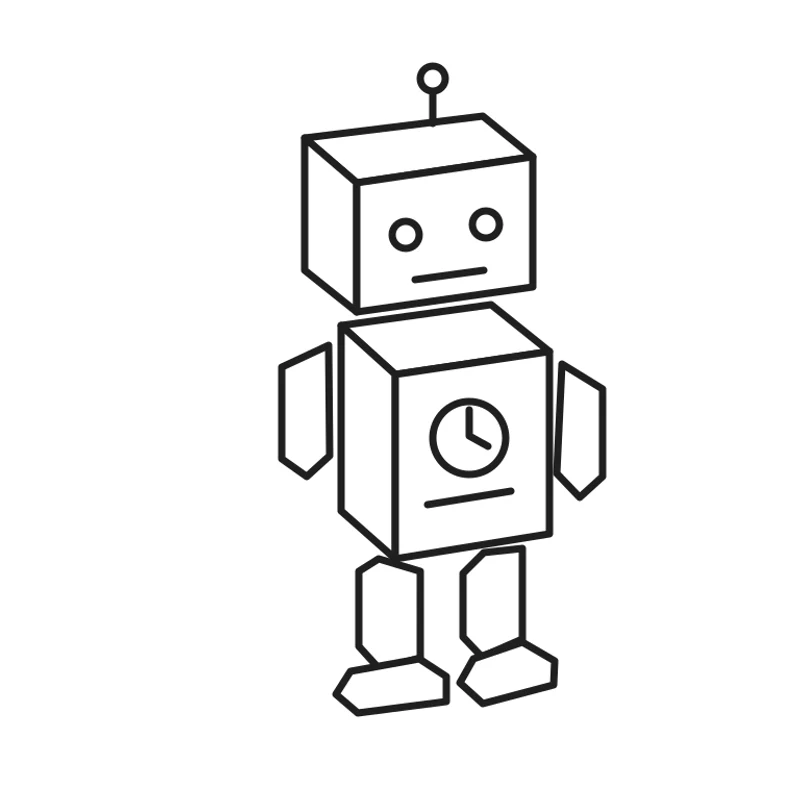 Input image
A real TRELLIS example generated on AI Image to 3D. Inspect the shape, then create your own model from a supported input.
Use cases
Sketch to 3D model workflows for rapid concept reviews
Turning a sketch to 3D model reveals volume and proportions far faster than flat turnarounds. Explore character silhouettes, furniture drafts or decorative pieces before sculpting details.
- TRELLIS
Convert a character or prop sketch to 3D model geometry to verify whether key shapes read cleanly from every camera angle. Export GLB or OBJ as a fast blockout base for sculpting, retopology and shading in your DCC tool.
- TRELLIS
Move a doodle of a figurine, desk toy or ceramic vessel from sketch to 3D model to evaluate overall silhouette and overhangs. Export STL when ready to verify scale, wall thickness and supports inside your slicer.
- TRELLIS
Bring an industrial sketch of a chair, lamp or handheld casing into a rotatable 3D draft for design reviews. Spot ambiguous proportions early, then carry final dimensions and tolerances into dedicated CAD tools.
- TRELLIS
Turn existing storyboard or prop drawings into quick 3D layout meshes to test scene scale and composition in your 3D editor before committing to hero modeling and look-dev.
Examples
Sketch to 3D model examples from real drawings
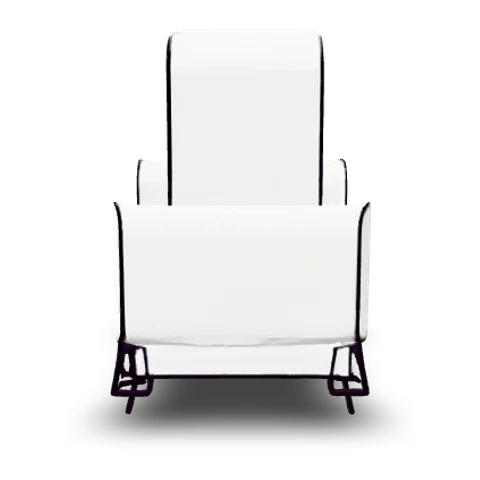
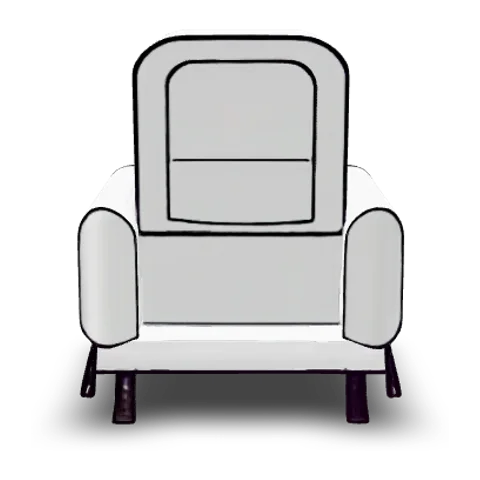
Each sketch to 3D model sample pairs an original line drawing or concept sketch with its real TRELLIS mesh. Compare the input lines beside the rotatable output to judge inferred depth and back surfaces.
Input imageModels
Choose an engine for your drawing to 3D AI workflow
The sketch to 3D model examples above were created with free TRELLIS. Review its input settings alongside pro image-capable engines below before testing your own drawing.
| Model | Image | Text | Multi-Image | Mesh detail |
|---|---|---|---|---|
| TRELLIS | Yes | — | 2–8 views | Low · Standard · High |
Supported inputs and detail tiers reflect each model’s live workspace configuration. Output quality depends on the clarity of your uploaded image.
From flat drawing to rotatable mesh
- Reference
- One clean photo or scan of a single drawn subject
- Preparation
- Crisp outer contour with stray notes and clutter cropped out
- Interpretation
- AI infers 3D depth and unseen sides from your drawing cues
- Inspection
- Orbit in textured, solid and wireframe views right in your browser
- Delivery
- Export GLB, OBJ or STL for downstream editing
- Precision
- Concept-stage 3D mesh rather than dimensioned engineering CAD
Features
Sketch to 3D model generation begins with crisp outlines
A strong sketch to 3D model starts with an unambiguous drawing. Keep the subject silhouette clear and inspect inferred back and side geometry before moving into your editor.
Upload a clean, single-subject drawing
To convert drawing to 3D model geometry cleanly, start with a clear scan, screenshot or well-lit photo of one object. Crop out margin notes, grid clutter and neighboring doodles so clear contours guide both line art and shaded sketches.
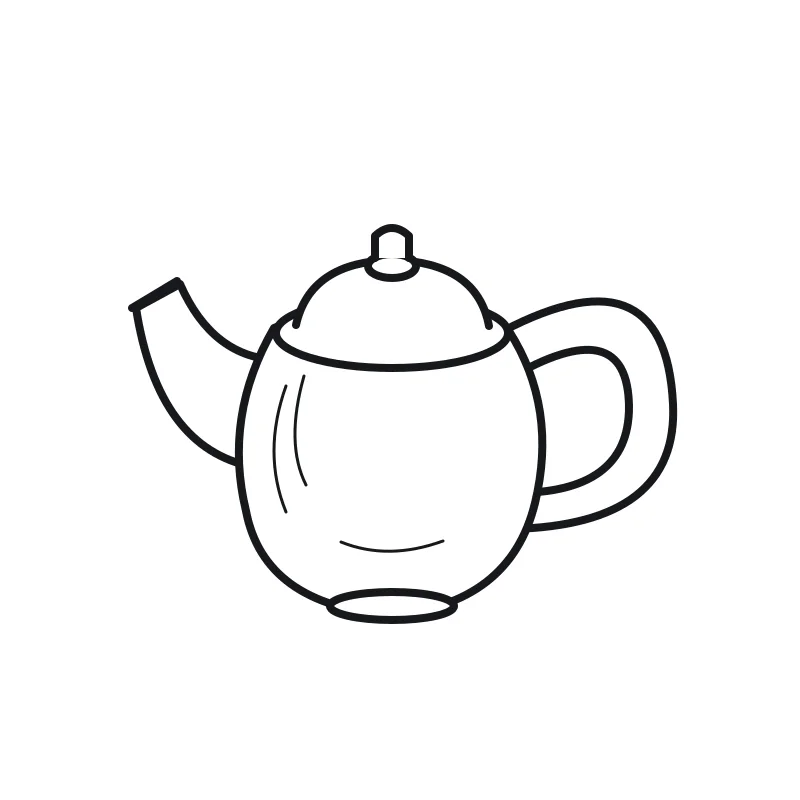 Input image
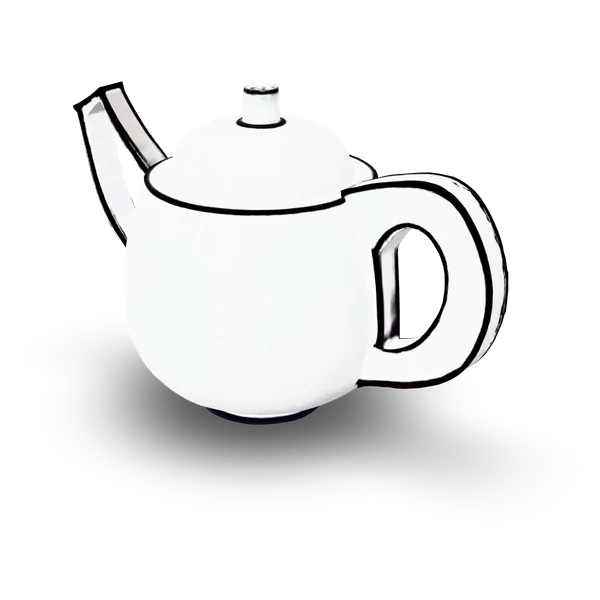
Evaluate depth inferred from your lines
Every drawing to 3D AI mesh builds sides and depth that a flat sketch cannot fully specify. Compare front, side and rear angles against your original drawing to see which proportions work and which details you want to refine.
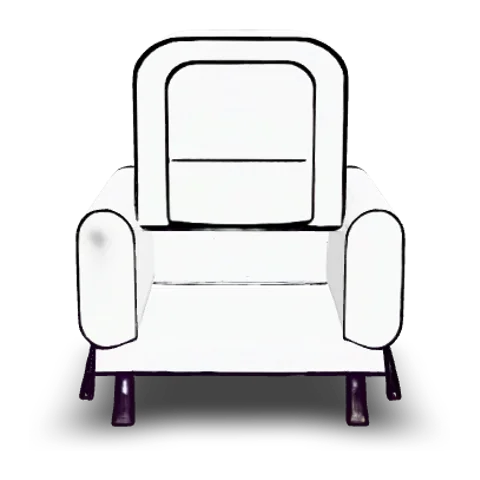
Inspect hidden sides in solid and wireframe views
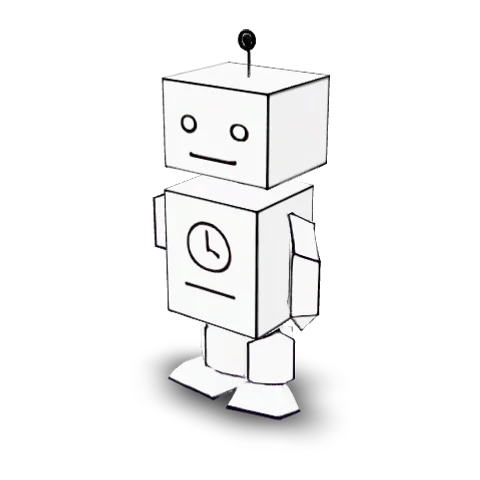
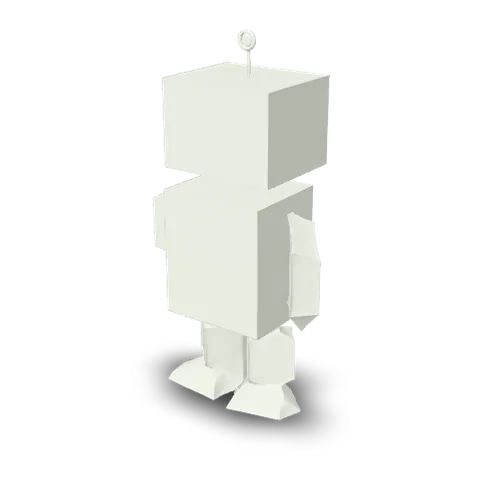
Before downloading a sketch to 3D model, orbit around the back, sides and underside. Solid and wireframe previews let you judge pure volume separately from sketchy surface shading so you know what to sculpt next.
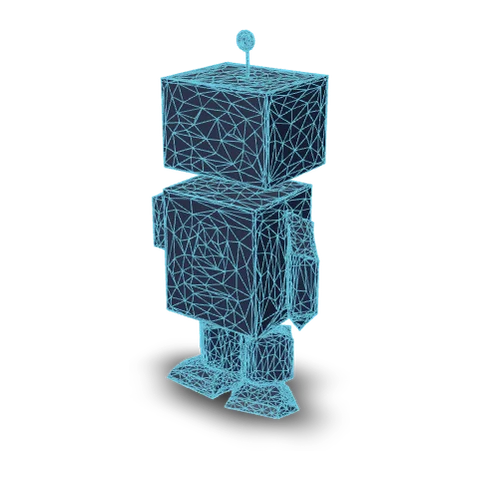
Export GLB, OBJ or STL for continued modeling
Download your sketch to 3D model as GLB for quick web and engine previews, OBJ with companion materials for sculpting tools, or STL for slicer checks. Carry the mesh straight into Blender, ZBrush or your slicer to finalize form and scale.

- glbWeb and games
- objEditing tools
- stl3D printing
Verified Technical Specifications
Sketch to 3D Model Specifications
Every input rule, export format, and credit policy below matches the live sketch to 3D model workflow and active catalog settings.
| Specification | AI Image to 3D Verified ValueVerified | Notes & Verification |
|---|---|---|
| Active Model Coverage | 7 live AI 3D models (TRELLIS free + 6 pro models) | Exact credit cost displayed on the Generate button before running |
| Input Modes | Single Image (JPG/PNG, up to 10–20 MB), Multi-Image, or Text prompt | Uploaded reference photos auto-delete after 24 hours |
| Export Formats | GLB (PBR web/game), OBJ (+MTL/textures), and STL (100 mm longest side) | Inspect in textured, solid, and wireframe views before downloading |
| Free Start & Protection | 8-credit no-sign-up trial + 16-credit sign-up gift | Private 60-day Asset Library · automatic credit refund on failure |
How it works
How to convert drawing to 3D model in three browser steps
Use this sketch to 3D model workflow to upload your drawing, generate a rotatable volume and check hidden sides before export.
- Upload your drawing
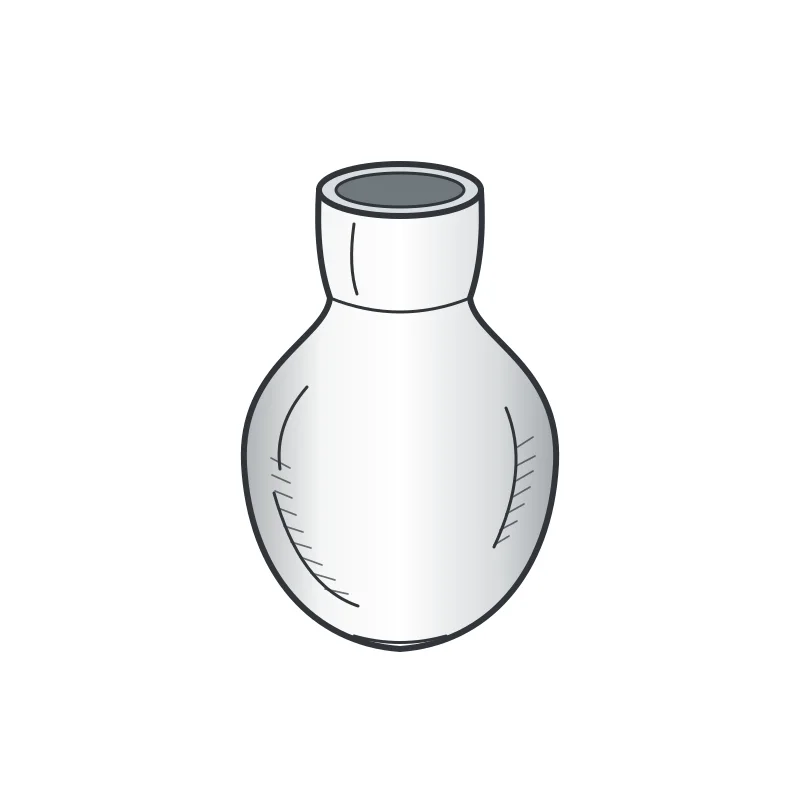
Prepare one clean drawing
Pick a sketch with a clear outer silhouette and distinct parts. Crop away margin notes and desk clutter so the drawing to 3D AI engine focuses cleanly on your subject.
- TRELLISUSE FREE CREDITS
- Rodin 2.5 FastPRO
- Hunyuan 3D 3.1 RapidPRO
- Tripo H3.1PRO
- Hunyuan 3D 3.1 ProPRO
- Rodin 2.5PRO
- Meshy 7.1PRO
Choose a model and check the quote
Upload your sketch in the Image tab and pick TRELLIS free or a pro engine. Review texture and mesh-detail toggles along with the credit quote, then click Generate.
- GLBOBJSTL
Orbit hidden sides and download
Spin your sketch to 3D model to check the back, sides and joints inferred from your lines. Compare textured, solid and wireframe views, then export GLB, OBJ or STL.
More generators
More AI 3D generators
Need multiple angles, text prompts or direct STL preparation after your sketch to 3D model? Explore the related workflows below.
Stories
Sketch to 3D Model Stories
From ink robot sketches to chair studies, these sketch to 3D model stories show how creators checked inferred depth and rear geometry before exporting.
I scanned a clean ink drawing of a stylized delivery drone and dropped it into sketch to 3D model. Checking the inferred rear casing in solid view showed me where the tail fin needed extra depth before I exported OBJ for ZBrush.
FAQ
Sketch to 3D model FAQ
Answers on preparing drawings, how drawing to 3D AI infers depth and available export formats.
- Clear drawing input
- GLB · OBJ · STL
- Inspect every side
A sketch to 3D model generator is an AI tool that converts a 2D line drawing or concept sketch into a rotatable 3D mesh. On AI Image to 3D, you upload a clean drawing, inspect the inferred 3D volume in your browser and export GLB, OBJ or STL.
Turn a sketch to 3D model and inspect every angle
Upload your line art or concept drawing, generate a rotatable sketch to 3D model free and inspect its inferred depth. Export GLB, OBJ or STL to keep shaping your design.